Hints & Solutions
Don’t look at the hints or solutions until first making a sincere effort to solve the steps yourself. If you really get stuck, take a look at the hints and (if necessary) the solution steps, but only as much as needed to get you going again.
There are many ways to solve most GIS workflows. It is OK if you use another way to achieve a similar outcome.
Hint 1: Generate intersections
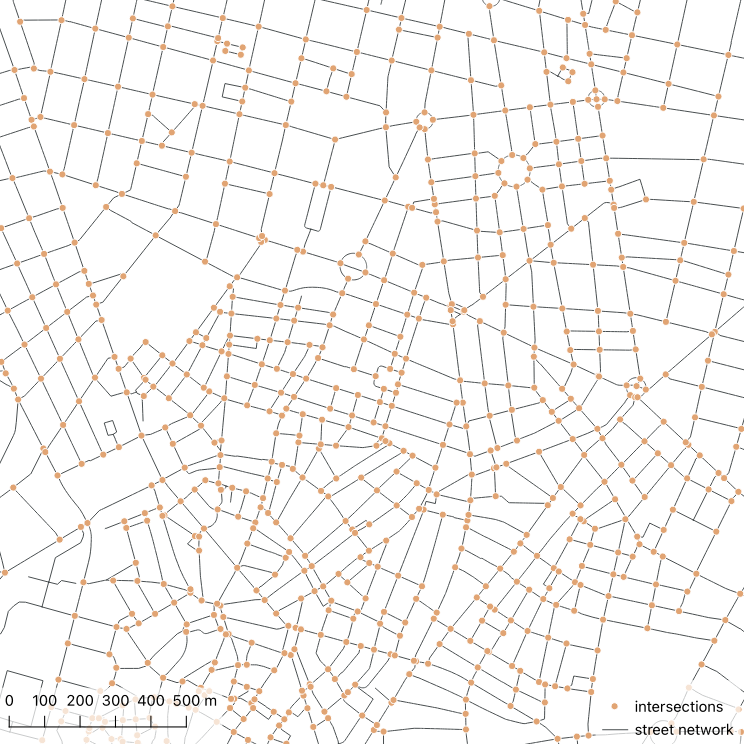
The input streets layer contains LineString geometries, but we need Point geometries for the analysis. QGIS has a tool for extracting line intersections as points.
Open the Processing Toolbox and use the Line intersections tool. Use street_network for both the input and intersecting layers, then run. This will generate an Intersections layer.
Hint 2: Remove duplicate intersections
If you inspect the resultant intersections, you might notice that many of the intersections are duplicated where lines touched each other (since each line is extracted in turn). Remove duplicates before proceeding.
To remove the duplicates, use the Delete duplicate geometries tool and run it on the Intersections layer, which will generate the Cleaned layer, with the duplicates removed. This will bring your intersection features count down from around 213k to 30k.
Hint 3: Join population data
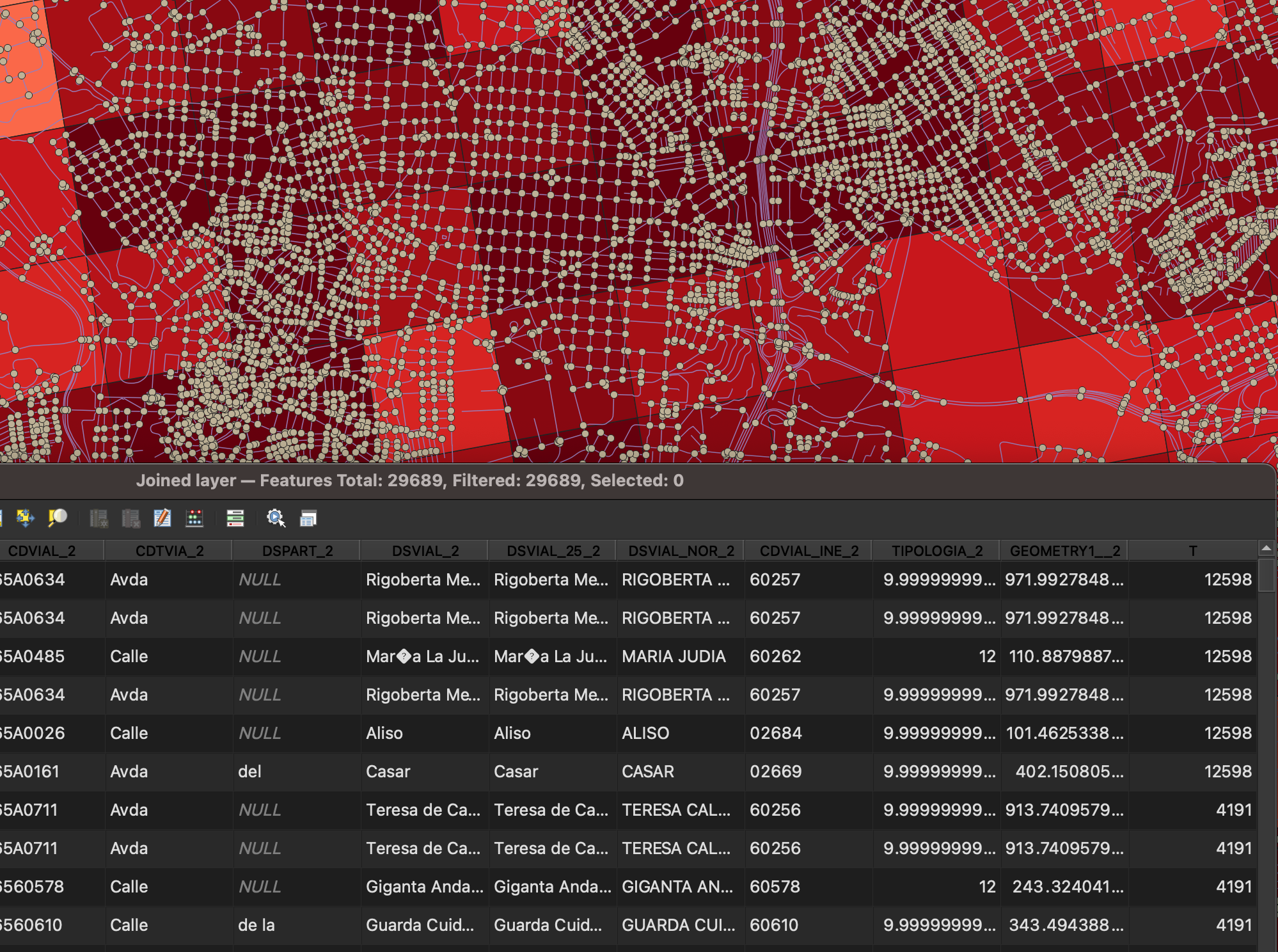
Now we need to transfer the population density information from the grid to the intersections. To do so, join the population count for each census grid cell to any points contained by that cell.
- Go to the
Vectormenu -Data Management Tools-Join Attributes by Location. - Use the
Cleanedlayer (from the previous step) as the “Join to features in” layer. - Use the
eu_stat_clippedlayer as the “By comparing to” layer. - Use
intersectfor the geometric predicate. - For “Fields to add”, select “T” (total population).
- For “Join type”, select “Take attributes of the first matching feature”.
This will output a new Joined layer, which merges the intersections with a new attribute column T, which contains the per 1km2 population count for that location. Rename the layer to itx.
Hint 4: Buffering
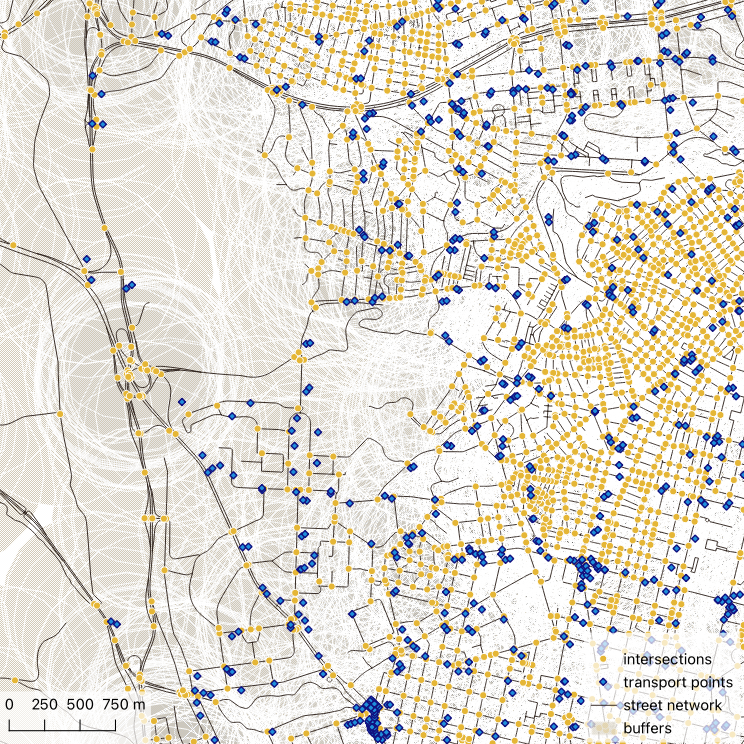
We need to count the intersections and transport stops within 1km2 of each of the intersections. Instead of using 1km x 1km square cells, use a circular buffer with an area equivalent to 1km2 around each intersection. The radius comes from the area formula for a circle: r = sqrt(1,000,000 / pi), which gives roughly 564m. Create buffered Polygon geometries from the intersections.
Go to Vector > Geoprocessing Tools > Buffer. Select itx as the input layer and 565m as the buffer distance, then run. This will generate a new Buffered layer. You may want to turn off layer visibility!
Hint 5: Count intersections
Count the intersections (Points) contained by each of the buffered geometries (Polygons).
- Go to
Vector>Analysis Tools>Count Points in Polygon. Select theBufferedlayer for the polygons and theitxlayer as the points. - Set the
Count field nametonumand run. - This will generate a
Countlayer, but rename it toitx_counts.
Hint 6: Prepare transport stops
From the madrid_infrast layer, extract only the transport stops.
- Open the Processing Toolbox and use
Extract by Expressionon themadrid_infrastlayer with the following expression:
"class" = 'bus_stop'
  OR "class" = 'railway_station'
OR "class" = 'subway_station'- This will create a new
Matching featureslayer containing only transport stops, leaving the original layer untouched.
Hint 7: Count transport stops
Count the transport stops (Points) contained by each of the buffered geometries (Polygons).
- Use
Count Points in Polygononce again, this time reusing theBufferedlayer but counting the extracted transport stops layer instead. - Set the
Count field nametonumand run. - This will generate a
Countlayer, but rename it totransport_counts
Hint 8: Joins
Join the derived itx_counts and transport_counts layers back into the itx layer. In Hint 3, we used a spatial join (matching by location). This time we need an attribute join (matching by a shared field), since the layers already share the same features in the same order.
- Open the layer properties for the
itxlayer. - Go to the
Joinsview then add a join foritx_counts, using thefidfields for matching. Select theJoined fieldscheckbox and select thenumfield. This will join the count of intersections data back into the originalitxlayer. - Repeat for
transport_counts, once again only joining thenumfield. - Export
itxtomadrid_joined.gpkg(with a layer name ofmadrid_joined). This step is important: layer property joins in QGIS are virtual. They only exist while the project is open with the source layers present. Exporting makes the joined fields permanent.
Hint 9: Setting the column names
Rename the attribute column names to those specified by the task.
- Double click the
madrid_joinedlayer in the Layers panel. - Click the
Fieldstab. - Toggle editing mode.
- Rename (if necessary) your population count attribute to
pop_km2. - Rename (if necessary) your intersection count attribute to
itx_num. - Rename (if necessary) your transport count attribute to
transport_num.
Hint 10: Setting walkability
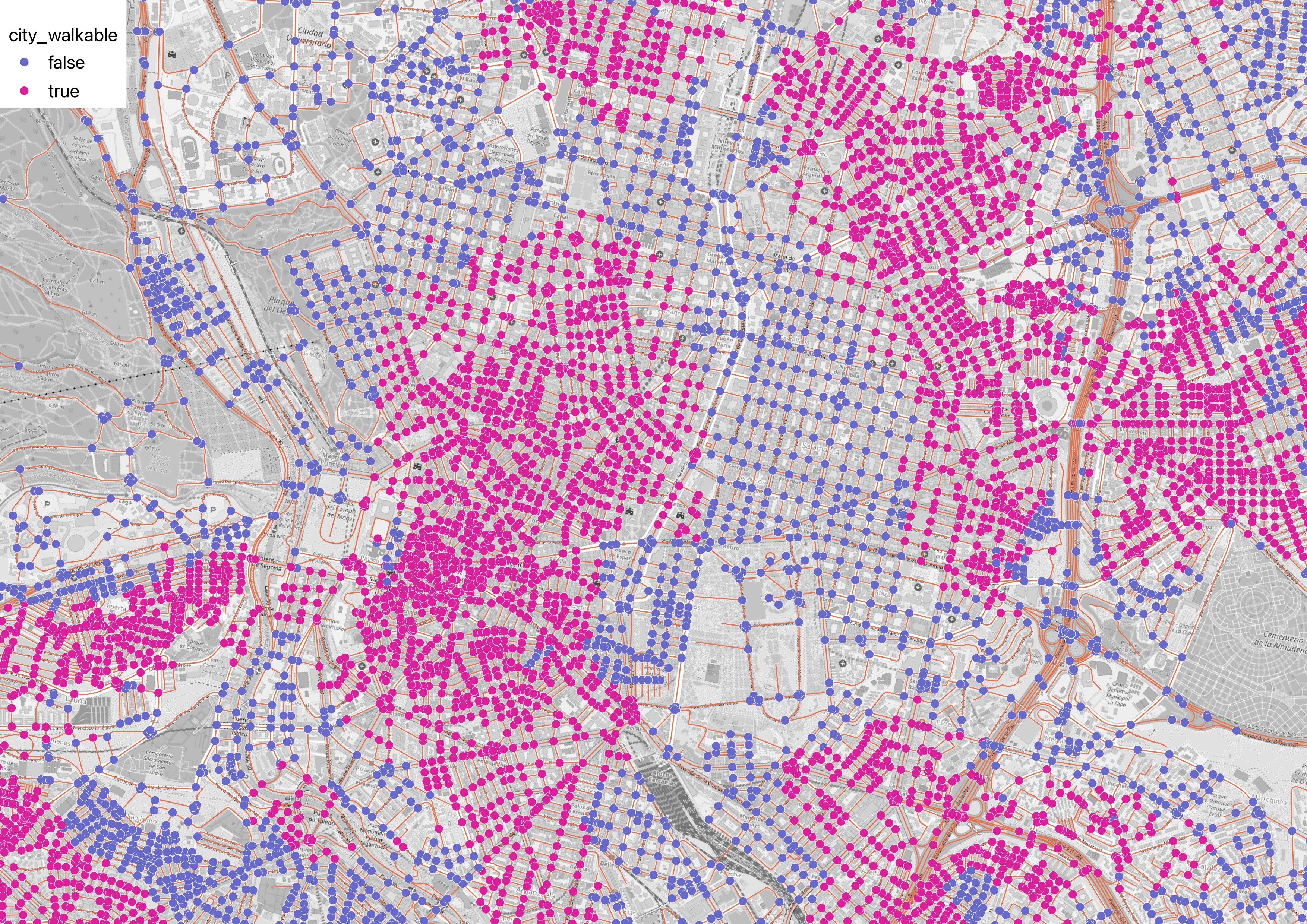
Set the is_walkable attribute based on the walkability thresholds.
- Open the Attribute Table and click the Field Calculator button (abacus icon).
- Create a new boolean column called
is_walkableusing the following expression. Double-check the column names match.
if(
  "pop_km2" >= 5700
    AND "itx_num" >= 100
    AND "transport_num" >= 28,
  true,
  false
)- Save and toggle editing, then export as
madrid_walkable.gpkgwith a layer name ofmadrid_walkable.